

A five-minute tour. First you change the pattern and watch the toy. Then you move the ears and watch the pattern.
Open the mouse
On My patterns, click New pattern and choose The field mouse. The pattern is on the left and the toy is on the right.
Find a round
Click a stitch on the toy. Its round lights up, and the text jumps to its line.
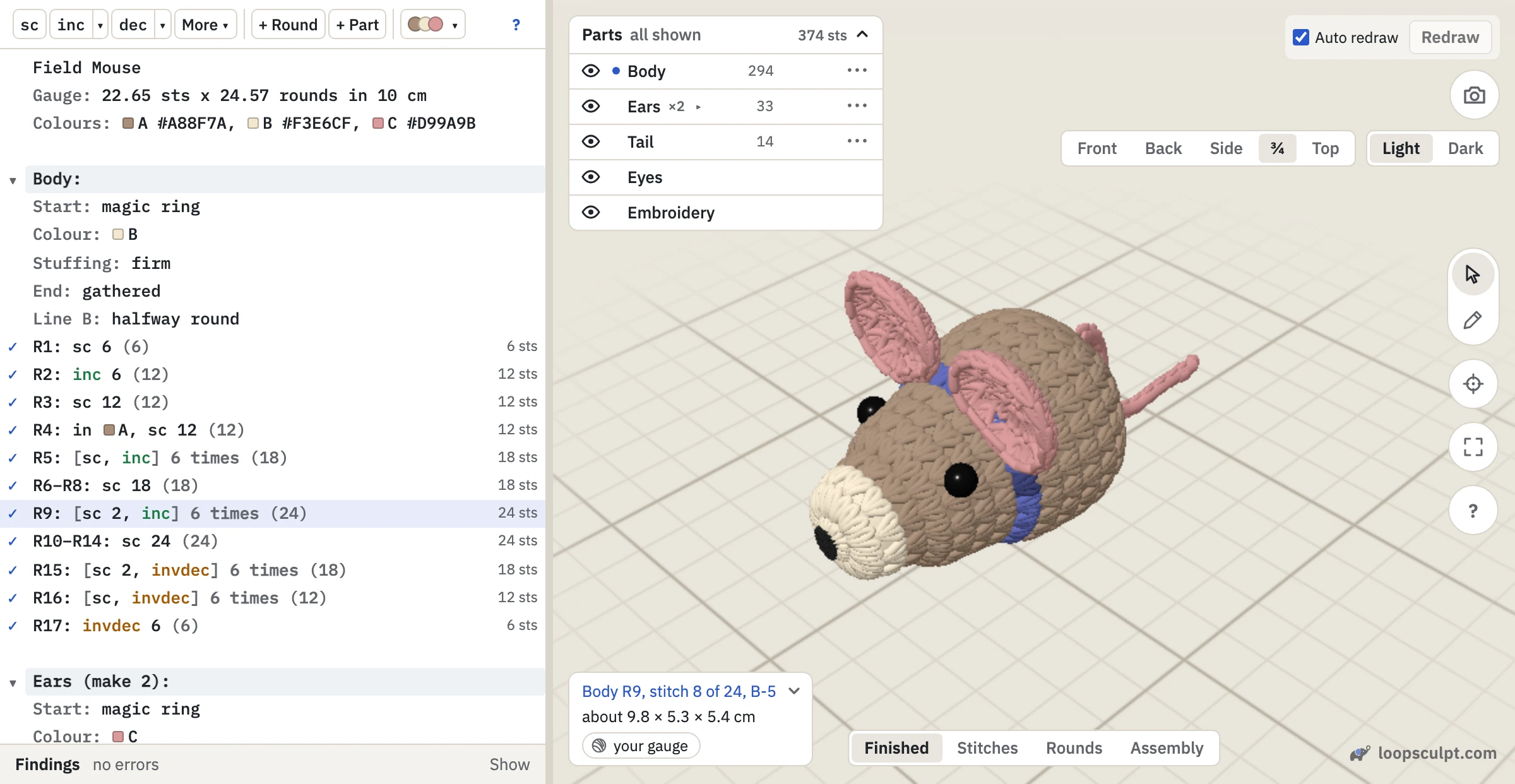
Make the body longer
- In the Body, click the line
R10–R14: sc 24. - Click + Round above the text. A new line,
R15:, appears. - Type
sc 24.
The body grows by one round. Now look at the last lines of the pattern. The tail was sewn to R16, and its line now says R17: the editor keeps the assembly in step with your rounds.
Move the ears
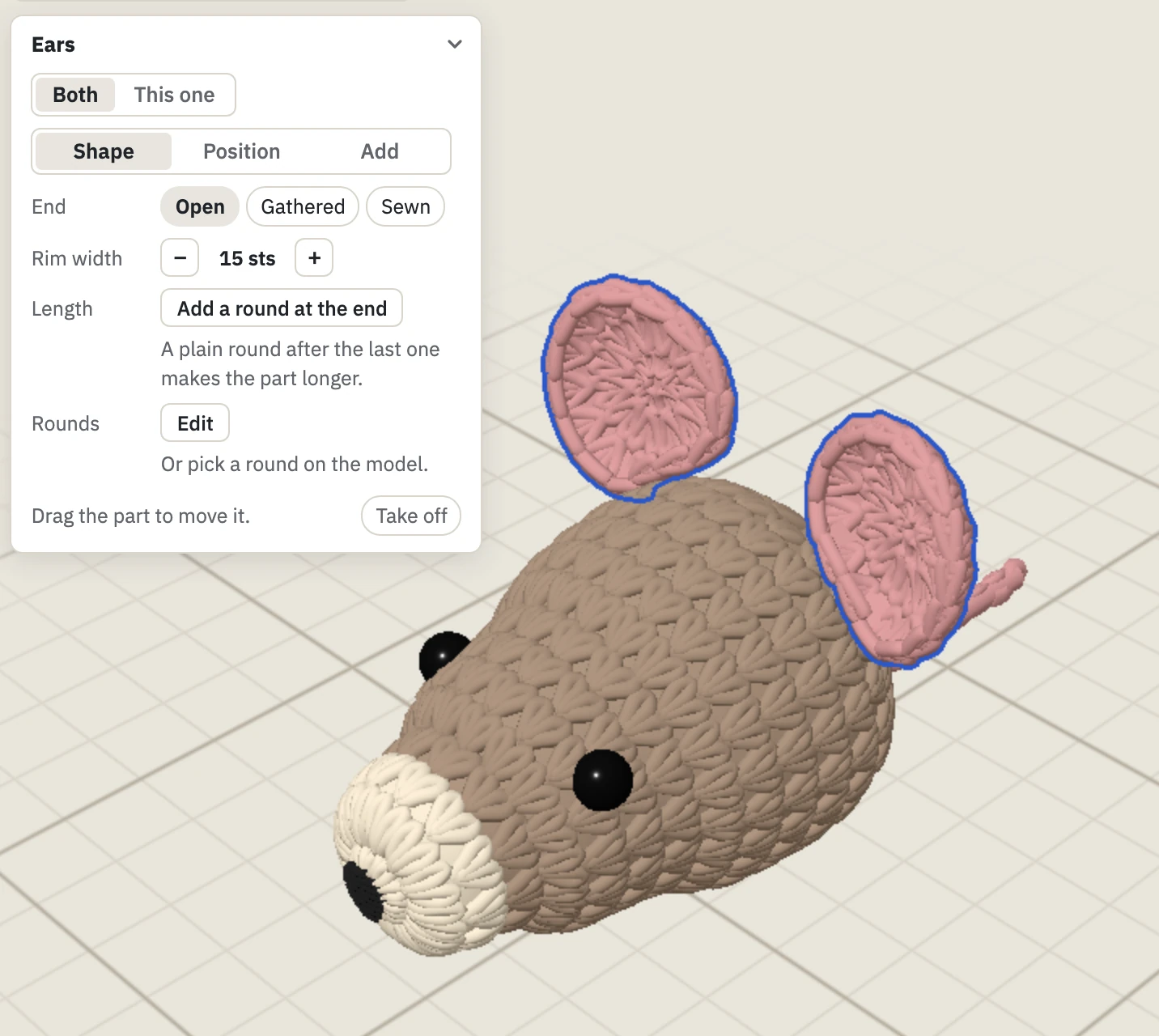
- Click the pencil on the right of the 3D view. This turns on Edit.
- Drag an ear towards the tail.
Both ears move. Under Assembly, the Ears line now names the round you dropped them on.
Undo
Press Ctrl + Z (⌘ + Z on a Mac). Each press takes back one change, whether you made it on the toy or in the text.
Save
Click Save. The pattern goes to your account under the name on its first line. Until you save, your changes are kept as a draft on this device.
Put Loopsculpt on your home screen
Loopsculpt can sit beside your other apps. It then opens in its own window, without the browser's bars. This is most useful on a phone or tablet, where the toy gets the whole screen.
| On | Do this |
|---|---|
| iPhone or iPad | In Safari, tap Share, then Add to Home Screen. |
| Android | In Chrome, open the menu and tap Add to Home screen. |
| A computer | In Chrome or Edge, open the browser's menu and install the page as an app. In Safari on a Mac, choose File, then Add to Dock. |
The icon opens My patterns. It is the same Loopsculpt as in the browser, so you need to be online.
Where to go next
- Edit the text: how rounds, repeats and parts are written.
- Edit in 3D: what you can change on the toy.
- Import a pattern: bring in a pattern you already have.