

In Edit you work on the toy itself. Click a part and choose what to change. Every change is written into your pattern.
Turn on Edit
Click the pencil on the right of the 3D view, or press E. The arrow above it, or V, takes you back to Look.
Then click a part. Its panel opens with three tabs: Shape, Position and Add.
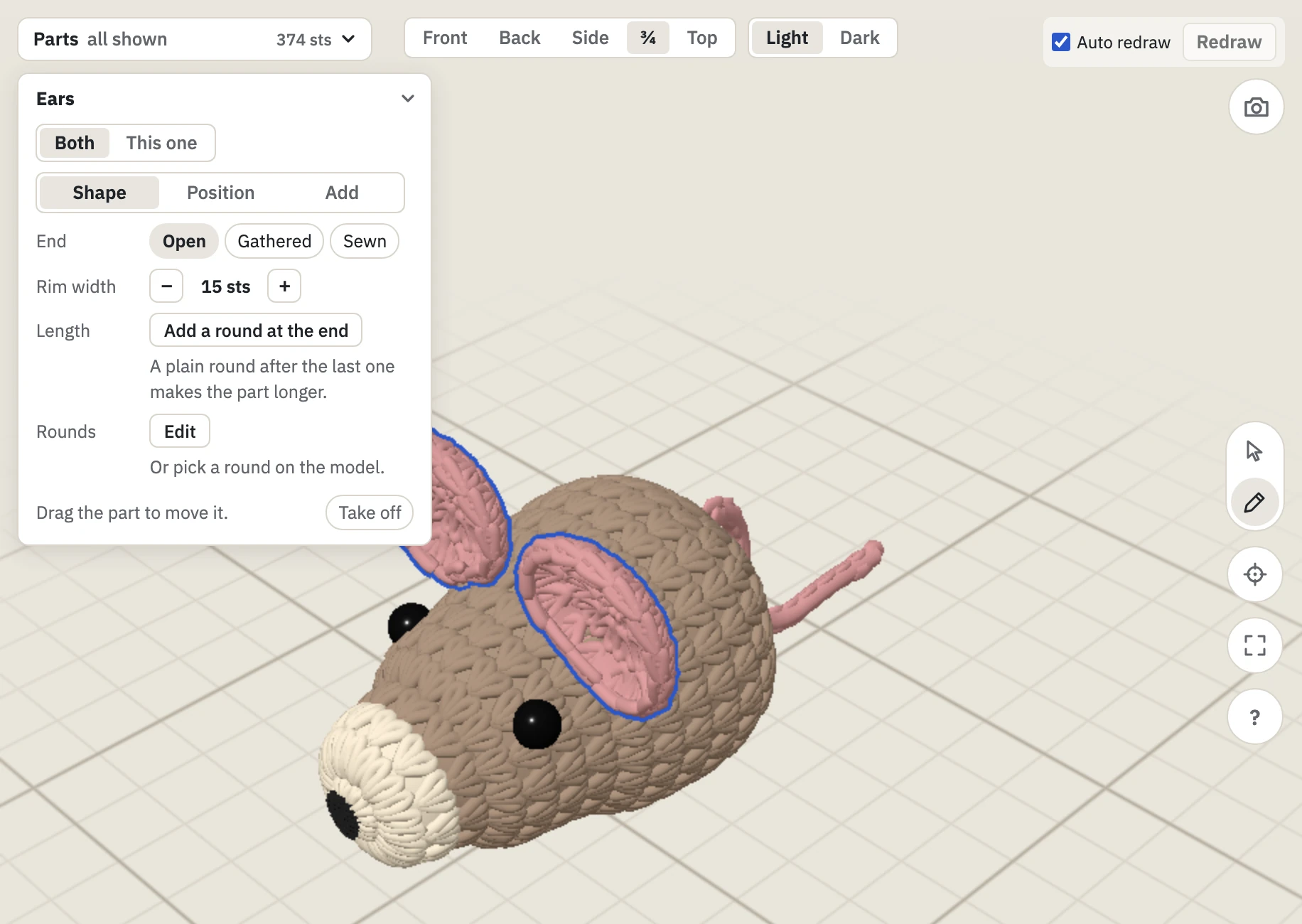
In Look, a double-click on a part opens it in Edit straight away.
Change a part's shape
The Shape tab shows what you can change on this part:
| Row | What it changes |
|---|---|
| Stuffing | None, Light, Medium or Firm. |
| End | How the last round is finished: Open, Gathered or Sewn. |
| Rim width | − and + make an open end narrower or wider. |
| Length | Adds a plain round at the end. |
| Rounds | Opens one round to change: see Change a round. |
A part shows only the rows that fit it. The mouse's body has no open end, so it has no Rim width.
Move a part
Drag the part to its new place on the toy. The second ear follows in mirror.
- A pair. Changes go to both pieces. Choose This one under the part's name to change one of them alone. Its assembly line is split in two.
- Take off. Drag the part off the toy and drop it on the table, or click Take off.
- Sew on. A part that has no place yet stands beside the toy. Drag it onto the toy.
Point and sew a part
The Position tab sets how the part sits on the toy.
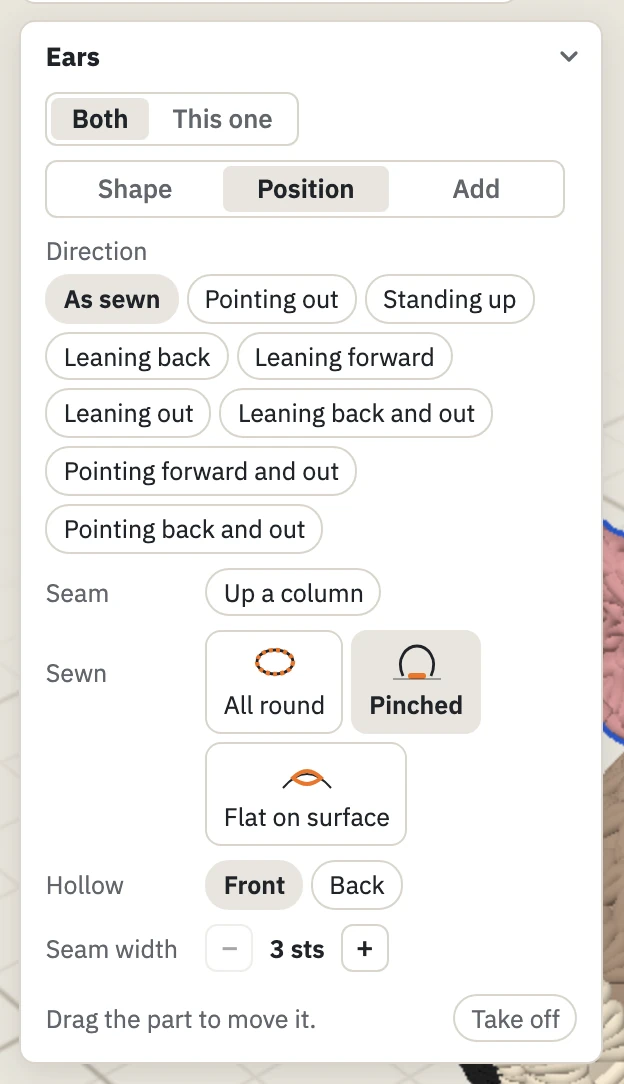
- Direction is where the part points. Hold the pointer over a choice to see it before you click.
- Sewn is how its edge meets the toy: all round, pinched or flat on the surface.
- Seam width is how many stitches wide the seam is.
For the body, Position has Pose instead: how the toy stands or lies.
Change a round
Click the selected part again. The round under your click is picked and lit on the toy, and its line is marked in the text.
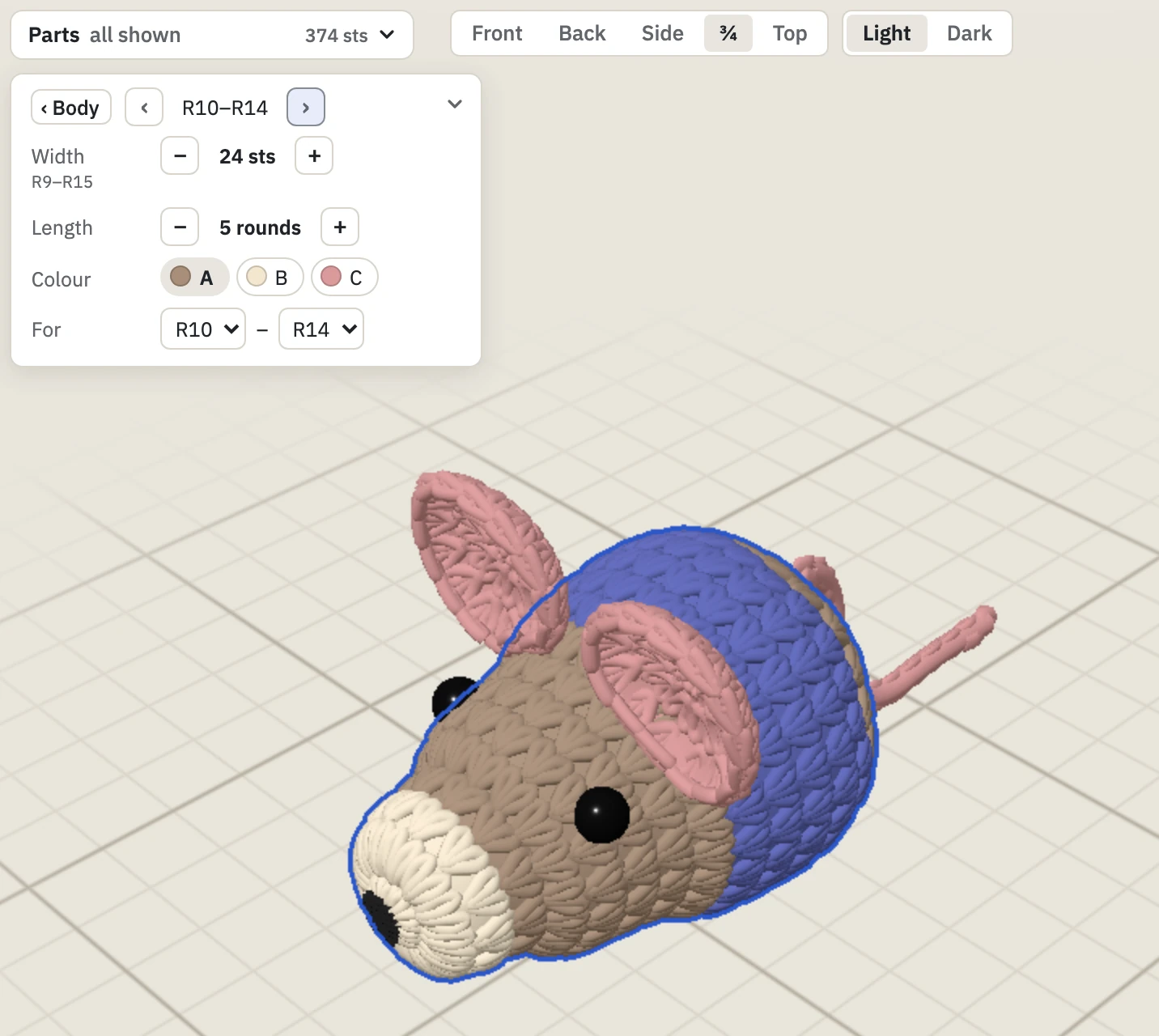
- Width makes the part wider or narrower around this round.
- Length adds or removes rounds where the same round repeats.
- Colour recolours these rounds. For narrows it to a stripe of them.
‹and›step to the round before and after. The part's name takes you back to the whole part.
Some rounds show "No edits available for this round". Change those in the text: see Edit the text.
Add eyes and embroidery
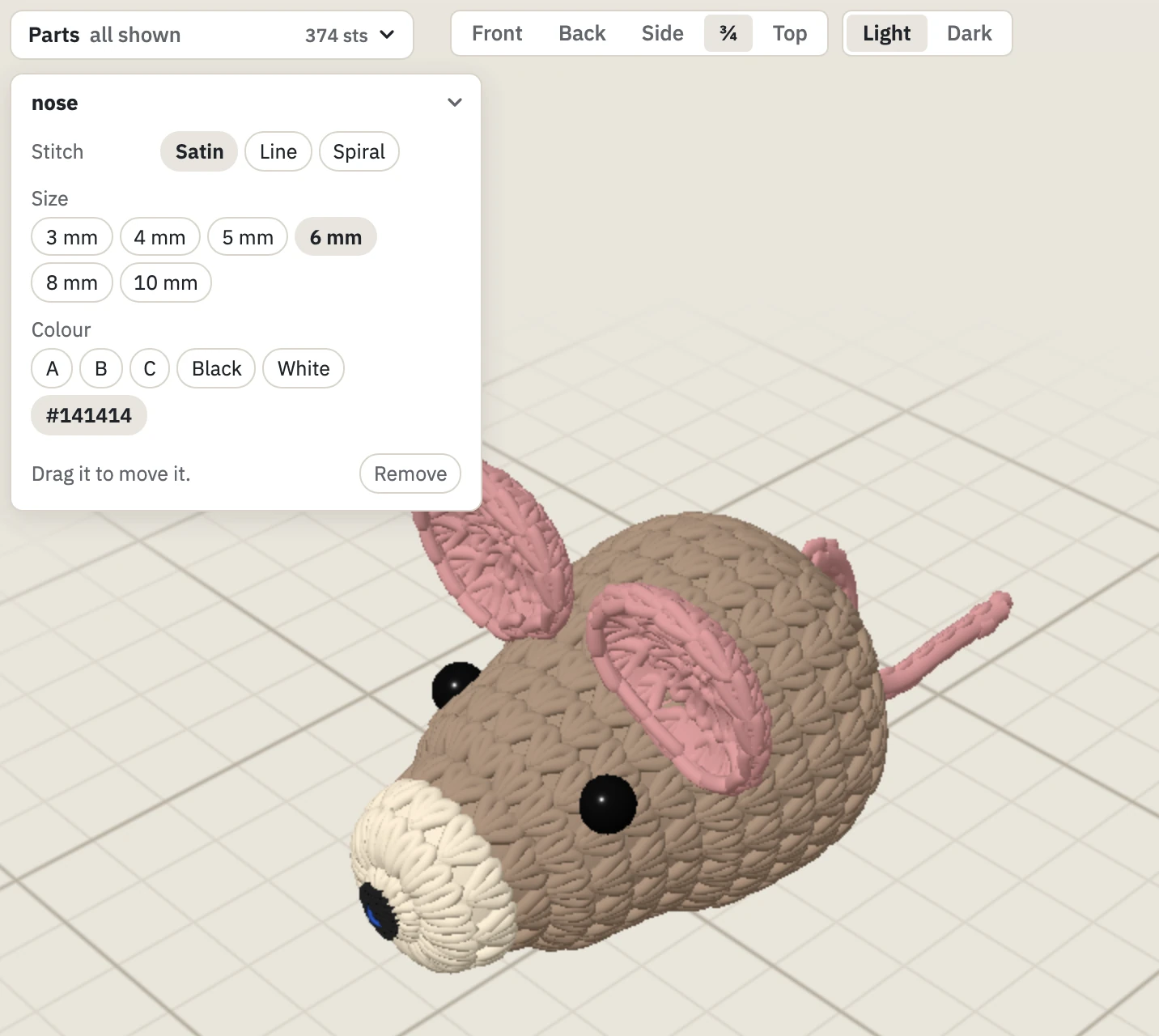
Open the Add tab, choose Eyes or an embroidery stitch, then click the toy where it goes.
Click an eye or an embroidery to change it. Drag it to move it. Drop it on the table to remove it.
Undo a change
Press Ctrl + Z (⌘ + Z on a Mac) or use the arrows in the top bar. Undo works the same for changes on the toy and in the text.
Keys and gestures
| Do this | To |
|---|---|
E |
Switch to Edit. |
V |
Switch to Look. |
Esc |
Step back: from a round to its part, then close the panel, then to Look. |
Ctrl or ⌘ + Z |
Undo. Add Shift to redo. |
Option + drag |
Move one piece of a pair alone. |
| Drag with the right button | Move the view. |
| Mouse wheel | Zoom. |
On a phone or tablet, tap where this page says click. The ? button on the right of the 3D view lists the touch gestures.